Start and register
Start pavanaarekh WindRose. A splash window shows the name and the version, then closes.
The first time you start the application, the registration window opens. Fill in full name, email, organization, and country. Phone is optional. Choose Register. This PC is then registered, and later starts go straight to the main window. The status bar shows Registered and the email you entered.
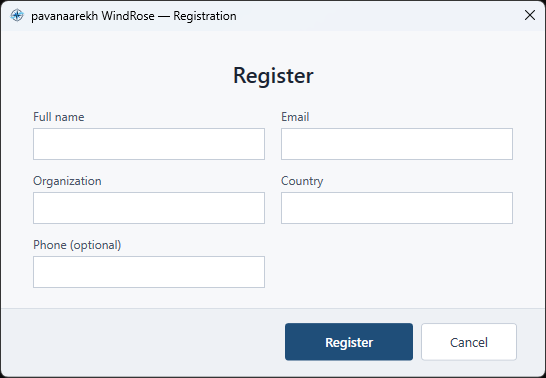
Figure. Register this PC once. After that, the application starts without a connection.
If the registration server cannot be reached, Machine ID and Offline key appear. Copy the Machine ID, request an offline key from Envitrans, paste it, then choose Register.
Closing the registration window before the PC is registered ends the session. The application tells you that registration is required before use.
Help → Register opens the same window later. When this PC is already registered, the window shows the registered name, email, and machine ID.
When a newer version is published, a message names the version and asks whether to open the download page. Choose No to keep working with the version you have.