Animate
Animate on the quick bar, or Tools → Animate, plays one rose at a time through the current period.
All data on aermet_ORG.sfc is a single rose, so Animate tells you that this period does not make two roses to step through. Set Period to Monthly, Seasonal, Annual, Diurnal, or By stability, then choose Animate again. Monthly on the sample file steps through the months that have enough observations.
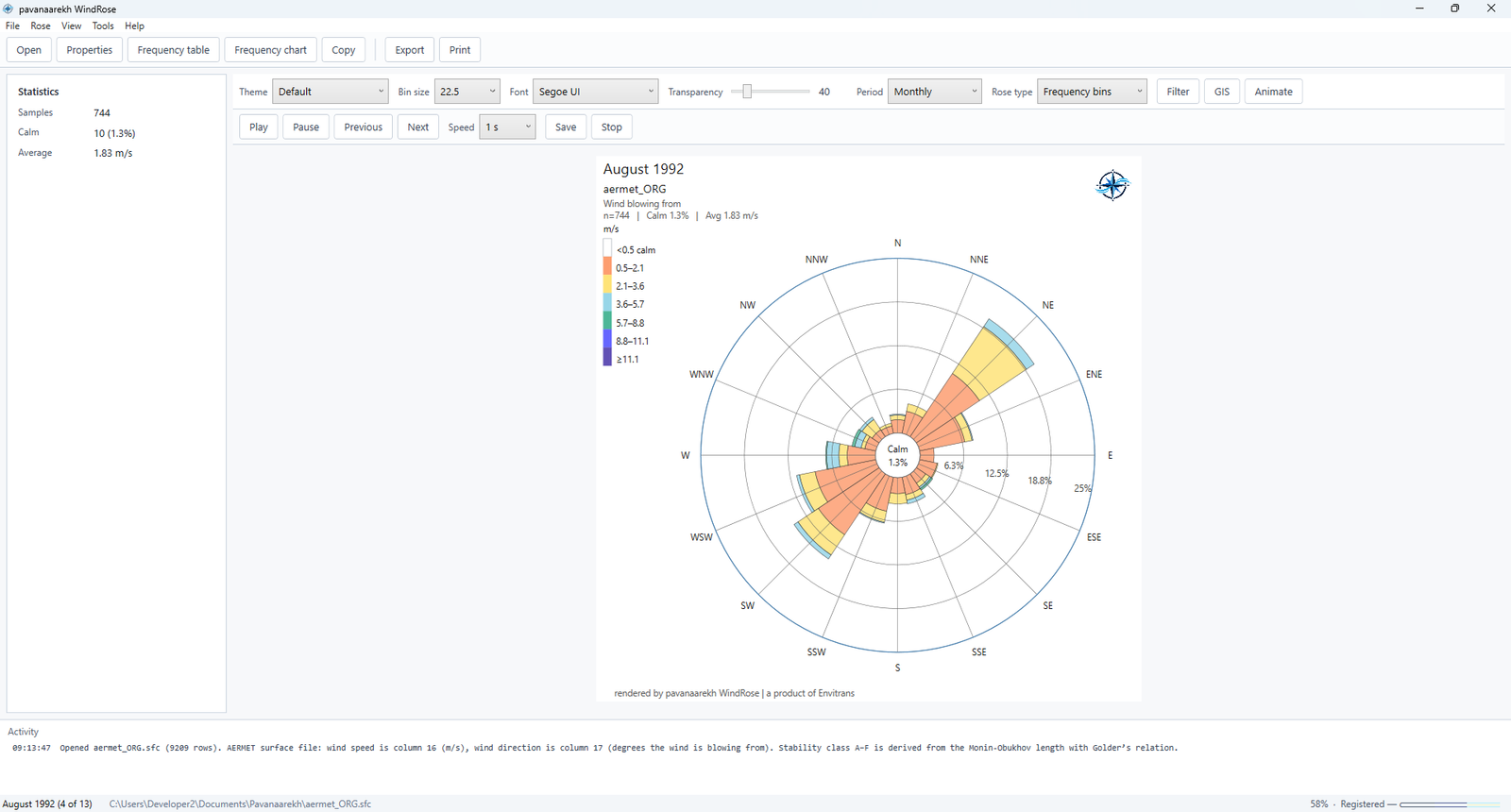
Figure. Monthly playback of aermet_ORG.pfl. This frame is October 1992 at 10 m. The bar above the rose is Play, Pause, Previous, Next, Speed, Save, and Stop.
The bar above the rose has:
- Play and Pause.
- Previous and Next, which move one rose and wrap around at the ends.
- Speed: 0.5 s, 1 s, or 2 s between roses. The start speed is 1 s.
- Save, which writes the sequence. The types are GIF, AVI, and MP4. The suggested name is
wind_rose.gif. The card names the frame it is writing. Playback resumes afterward if it was running when you saved. - Stop, which leaves the animation and redraws the grid for the current period.
The status bar names the step, for example the month title and “3 of 12”. Statistics update to the rose on screen. A rose that is a single level is labeled with that height, such as Height 10 m, when the file has heights.
On a file with more than one height, each period step is drawn at every level from the lowest to the highest, except when the period is By height. By height plays one rose per level. All data on a multi-level file plays one rose per level. All data on a single-level file, such as the sample surface file, stays on the message that there are not two roses to step through.