Copy, print, and export
These commands use the rose that is on screen. Open a file first. A short card covers the window while a picture is copied or a file is written, and it names the work in one sentence.
Copy
Copy on the command bar, or Rose → Copy image, places a PNG of the current rose on the clipboard. Paste it into a document or a slide. Activity records that the rose was copied.
Print on the command bar, or File → Print, opens Print preview.
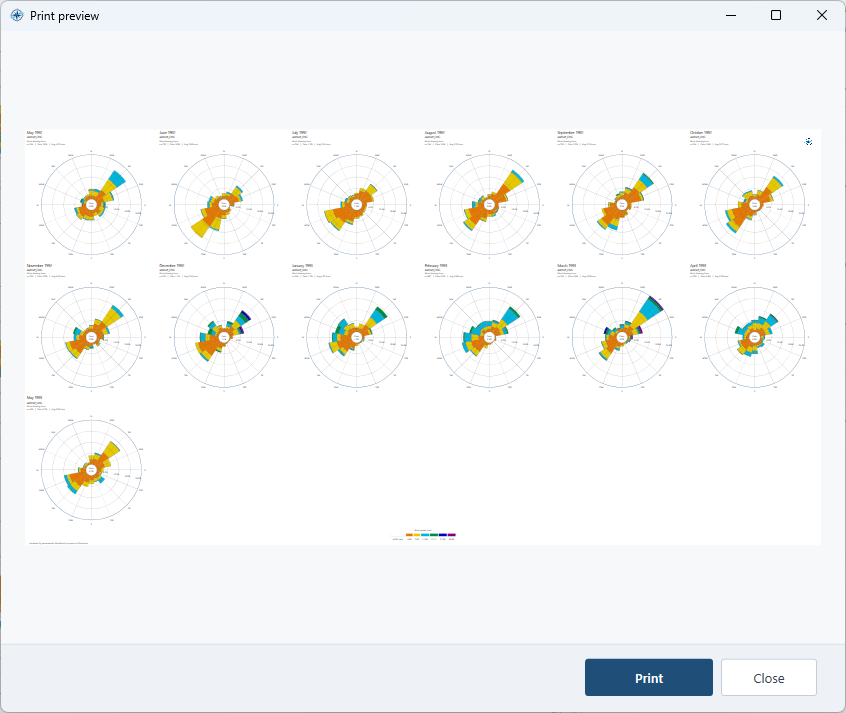
Figure. Print preview of the monthly roses, with one shared color bar under the grid.
Print sends that page to the printer. Close returns to the main window without printing.
Export the rose as a picture
Export → Graph, from the command bar, the File menu, or the right-click menu. The suggested file name is wind_rose.svg. Choose the type in the save dialog:
- SVG
- EMF
- PNG
- JPEG
- BMP
- GIF
Export → Transparent PNG writes wind_rose.png with a transparent background, so the rose can sit on another page color.
Export for a map
Export → GIS writes a file a map can open. The suggested name is wind_rose.kml. The types are KML, KMZ, shapefile, DXF, and SVG.
KML, KMZ, and the shapefile use the latitude, longitude, and rose radius from Properties → GIS. With those coordinates blank, the geometry is placed at 0, 0, and the status bar says to set the station in Properties → GIS. For aermet_ORG.sfc, set latitude 40.790 and longitude -75.140 before this export if the rose should sit on that station. The radius starts at 2000 metres.
A picture behind the rose
Rose → Background image accepts PNG, JPEG, BMP, and GIF. The picture is drawn behind the rose, and Image appears on the quick bar:
- Stretch fills the canvas.
- Contain fits the whole picture inside the canvas and keeps its shape.
- Center draws the picture at its own pixel size.
- Tile repeats it at that size.
Rose → Remove background clears the picture. Raise Transparency if you want the map or the photo to show through the arms.